September release: Voice cloning, home scenes and casual characters, new templates, and more Stud...
Hey, folks! Yes, you read that right – voice cloning is now available in Vyond! 🤩
Let’s get right into this month’s release notes ⬇️
Create Your Own Voice
If you’re on an Enterprise or Agency plan, you can now upload a recording of your voice to add it to the text-to-speech voice library. You can use it any way you’d use text-to-speech, including lip-syncing avatars and characters, or generating a voiceover. It’s simple to enter a script and generate, and just as easy to update, scale, and localize.
Learn more about creating your own voice.
Home Scenes and Casual Characters for Storybook
We’ve added a whole new set of home scenes, props, backgrounds, and casual outfits, so you can bring everyday moments to life. Available on all plans:
11 stock characters
108 props
8 backgrounds
6 scenes
36 character creator components
Fun Fact and QOTD Templates
We’ve added a fresh batch of templates to the Template Library, built around conversation starters. These easily-customizable templates are great for sparking chat in a Slack or Teams channel, kicking off a meeting, or as quick relatable content that builds community for your online audience.
Find them in the template library here.
Mateo and More Voices
The following 13 Ultra High Quality voices from ElevenLabs have been added, available on Enterprise and Agency plans. All voices are multilingual, the accent listed reflects what each voice does best. You can use prompt tags to shape emotion, accent, and pacing of the audio:
English, United States: Female – Bella
English, United States: Female – Nora
English, United States: Male – Adam
English, United States: Male – Colton
English, United Kingdom: Male – Callum
Portuguese, Brazil: Female – Beatriz
Portuguese, Brazil: Female – Bruna
Portuguese, Brazil: Male – Matheus
Portuguese, Brazil: Male – Rodrigo
Spanish, Latin America: Female – Graciela
Spanish, Latin America: Female – Luciana
Spanish, Latin America: Male – Emiliano
Spanish, Latin America: Male – Mateo
Upload Directly to the Stage
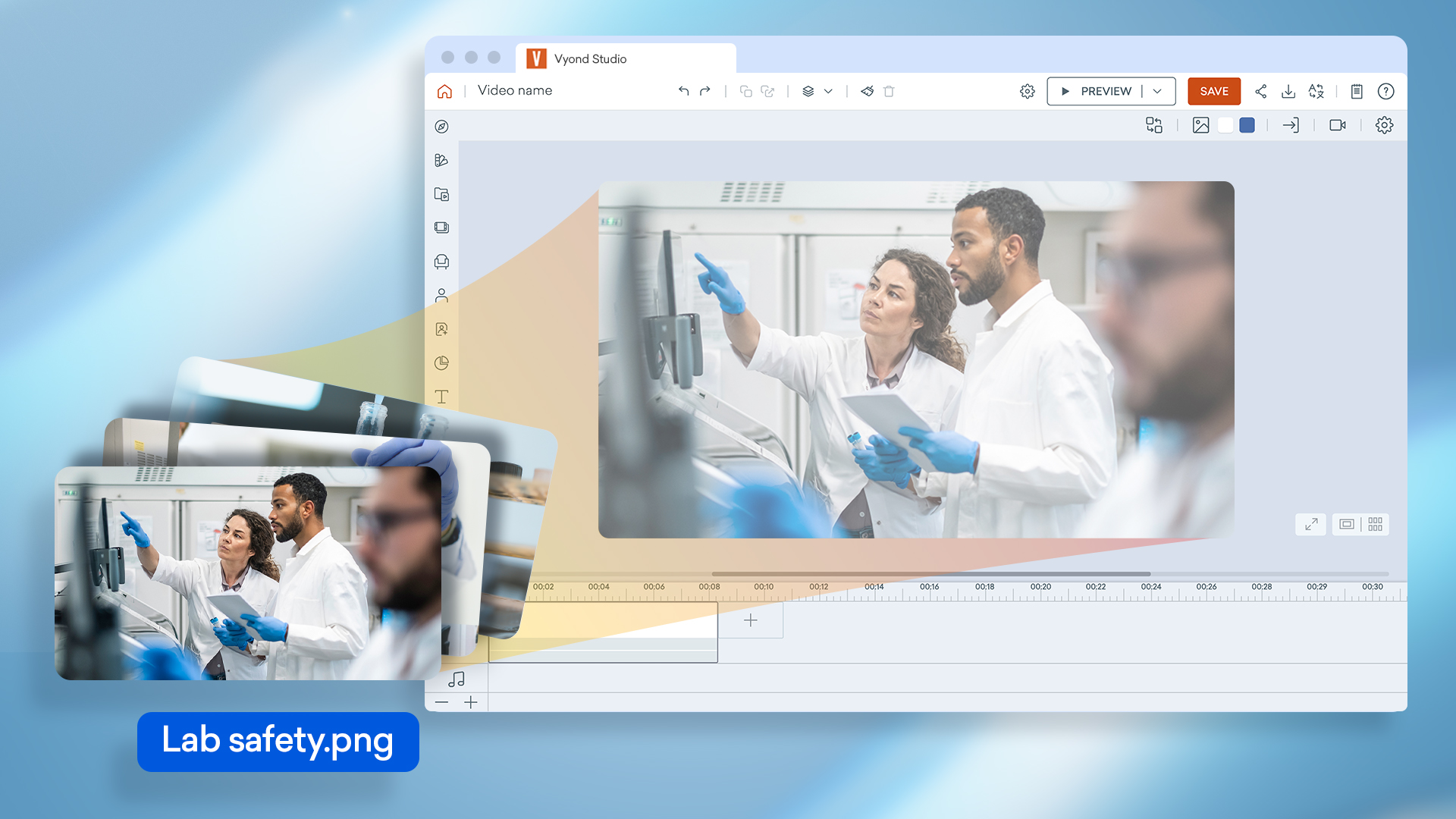
Bringing your own assets to a scene just got easier. You can now drag multiple files straight from your desktop into Vyond Studio and have them ready to use on the stage in seconds.
How it works:
On your desktop, select the video, image, audio or font file you’d like to use.
Drag them into Vyond Studio.
Drop them onto the stage to use immediately, or drop them into the Upload panel to find later.
Auto-Fit Scenes to Match Text-to-Speech Audio Length
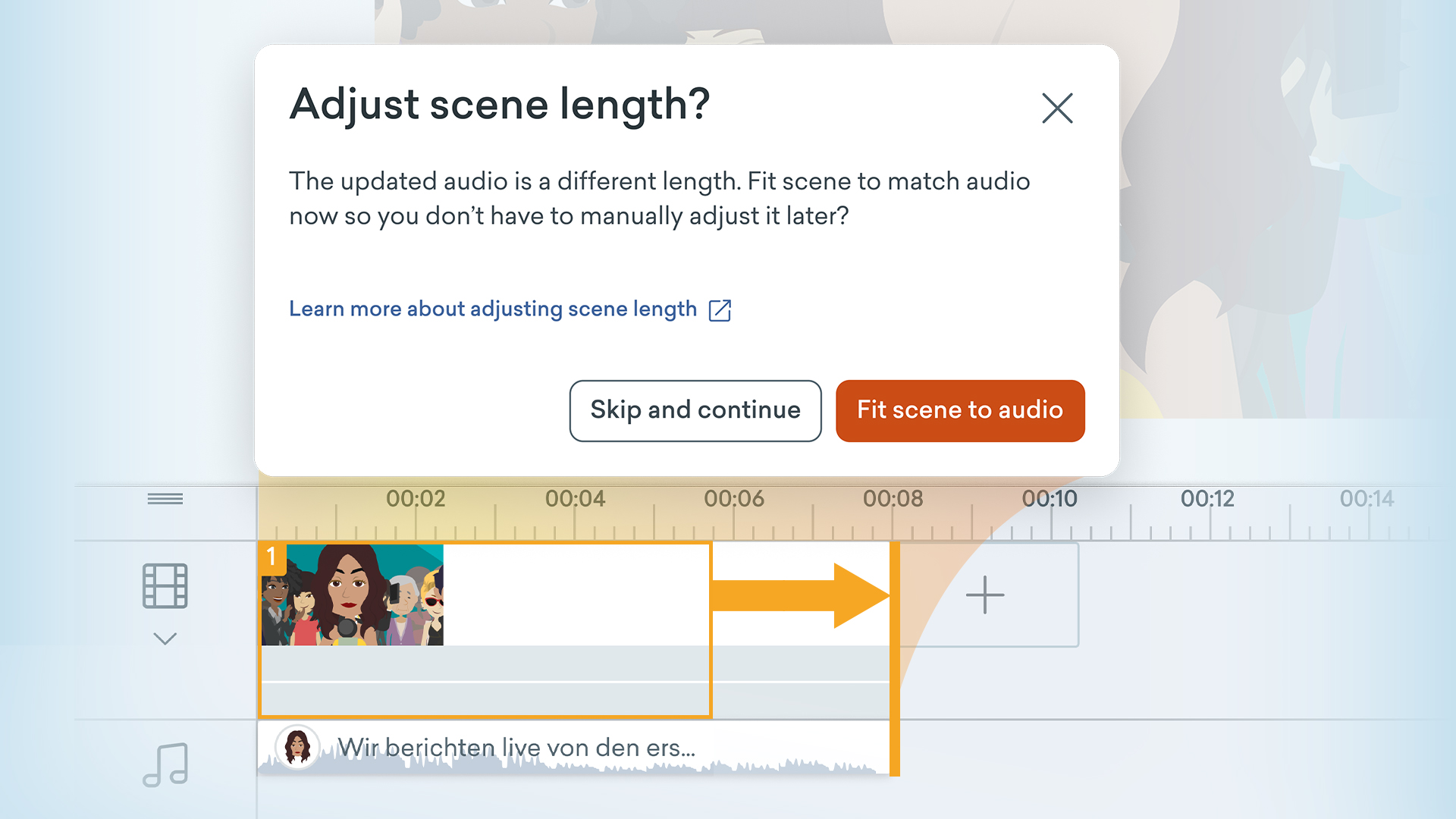
Just as you can auto-fit a scene to match video length, you can now also auto-fit a scene to match audio length.
When you update a script, auto-translate a video, create new avatar audio, or bulk replace voices, your audio duration can shift. From now on, you can auto-fit your scene lengths to match your new audio, instead of dragging in the timelines manually.
How it works:
When updating AI avatar videos:
Edit AI avatar video text-to-speech and save.
Go to Scene Settings.
Under Auto Fit select to match AI avatar duration.
When making bulk changes to text-to-speech:
Import text to your scene.
You’ll be asked if you’d like to adjust the scene length.
Select Fit scene to audio to adjust it to the new audio duration.
Disclosing AI-Generated Content with a Label
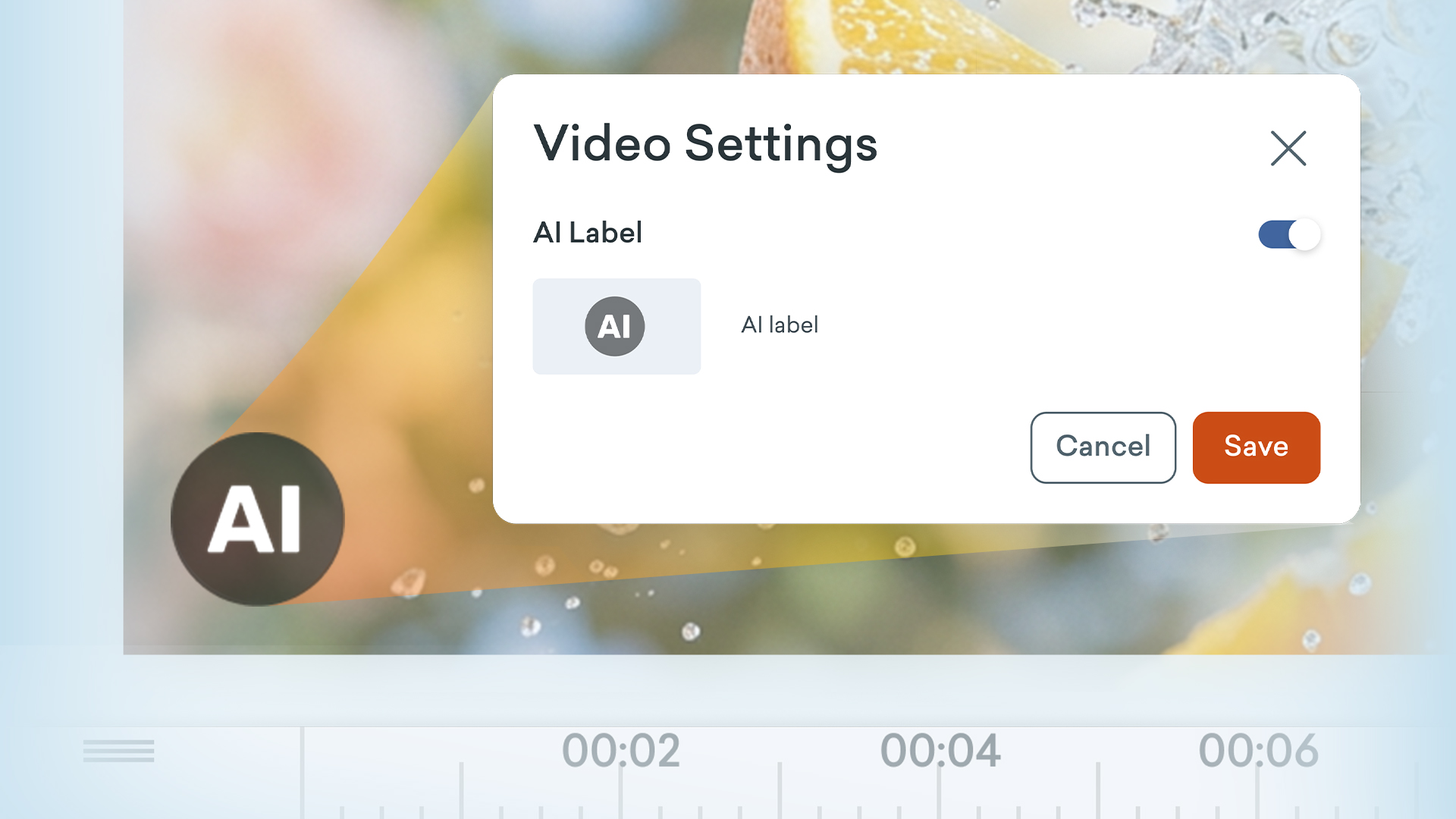
Compliance is an important part of the workflow for many of us. Article 50(4) of the EU AI Act requires visible disclosure when AI-generated or manipulated content resembles real people, places, or events.
If your video includes AI-generated content and you need to label it, you can now add a visible AI label easily.
Learn more about disclosing AI.
That’s all for now! 😮💨 Let us know your thoughts in the comments below. If you have any feedback for us, please share it in #Product feedback.