August release: Auto-fit scenes to match uploaded video, rename assets in your uploads tab, new v...
Hey folks! Here is the release note for this month’s release. Let’s dive right in ⬇️
Auto-Fit Scenes to Match Uploaded Video
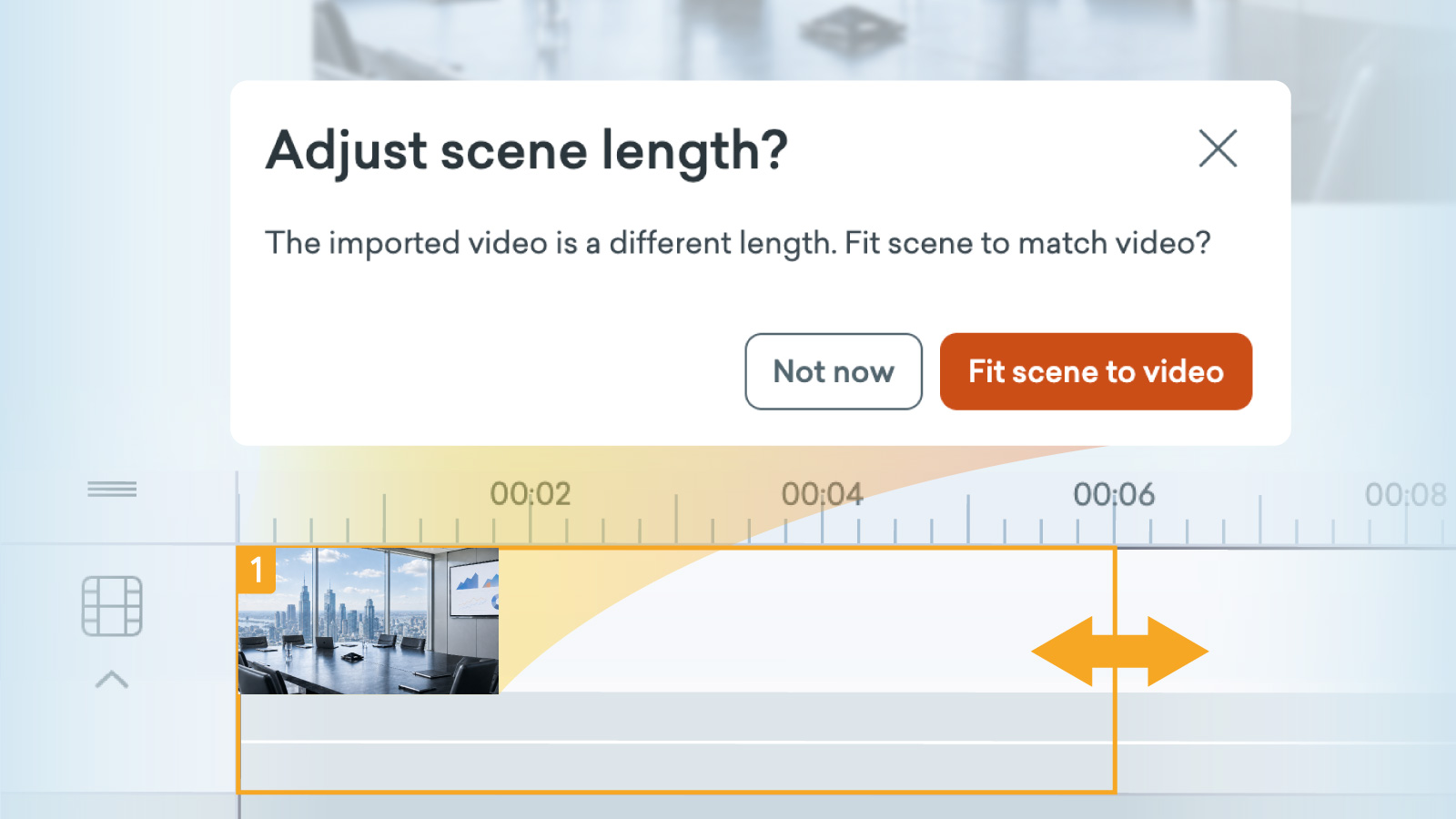
Sometimes when you’re adding a video to a scene, it can be longer or shorter than the existing scene length. From now on, it’s much easier to quickly adjust the scene length to match the video duration.
How it works
When adding a video to a scene:
Add a video to your scene.
You’ll be asked if you’d like to adjust the scene length.
Select Fit scene to video to auto adjust it to the video duration.
When a video is already added to a scene:
Select the video asset on the stage.
Open the Video Playback menu, located along the top right navigation bar.
Select Fit scene to video.
Rename Assets in Your Uploads Tab
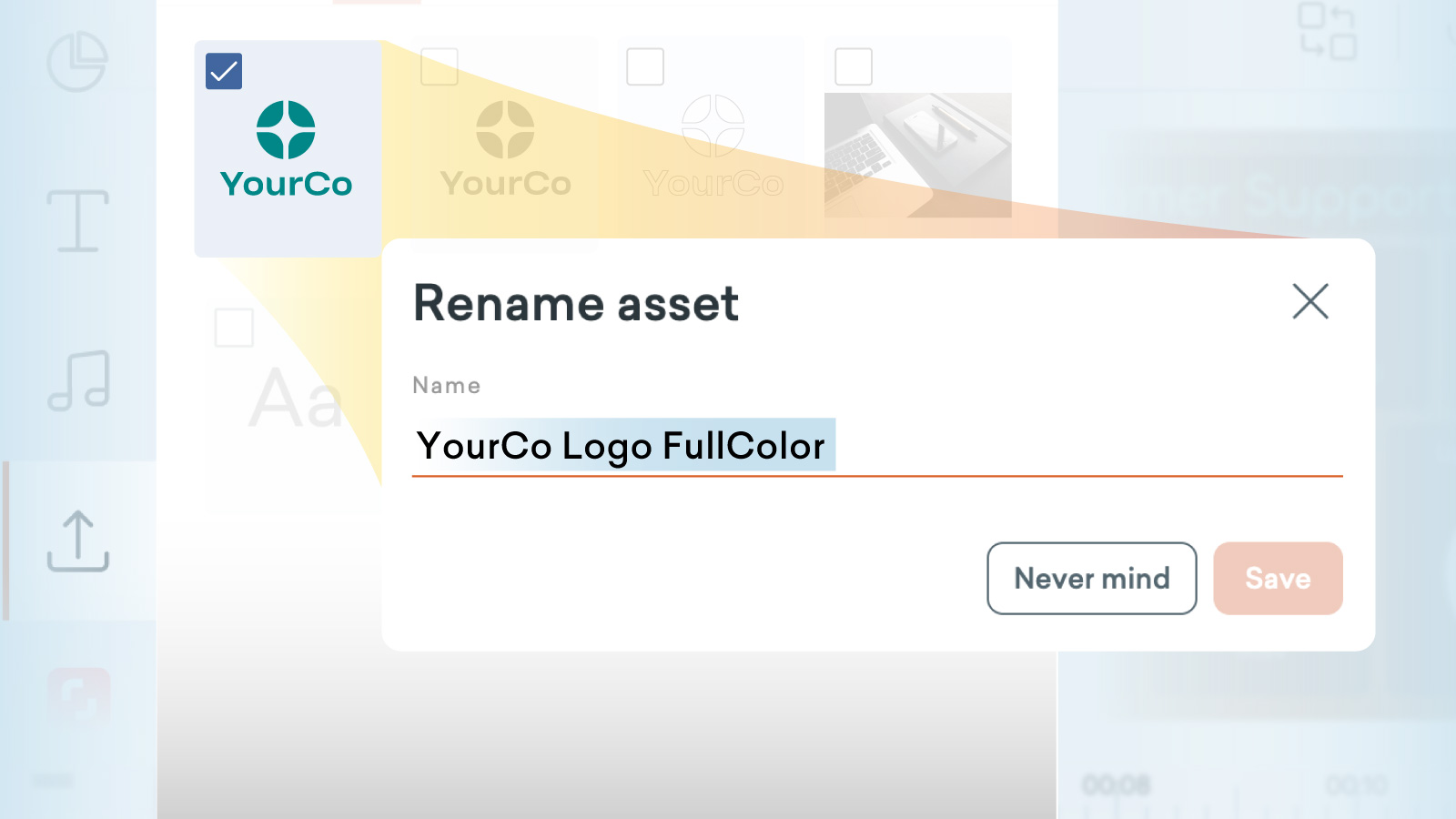
Does the number of assets in your Uploads tab seem to grow and grow? In order to locate, identify and reuse content more effortlessly, assets in the Uploads and Audio tabs can now be renamed.
How it works
In Vyond Studio, open the content panel on the left-hand side.
Navigate to Uploads or Audio.
For Uploads select: My Library, Shared Library, or Transferred Content.
For Audio select: My Library (and within that either Mic Recording, or Text-to-Speech), Shared Library, Transferred Content.
Hover over any file to reveal the 3-dot menu, then select Rename.
Enter a new name and click Save to update, or Never mind to cancel.
Multi-Select Assets with the Shift Key
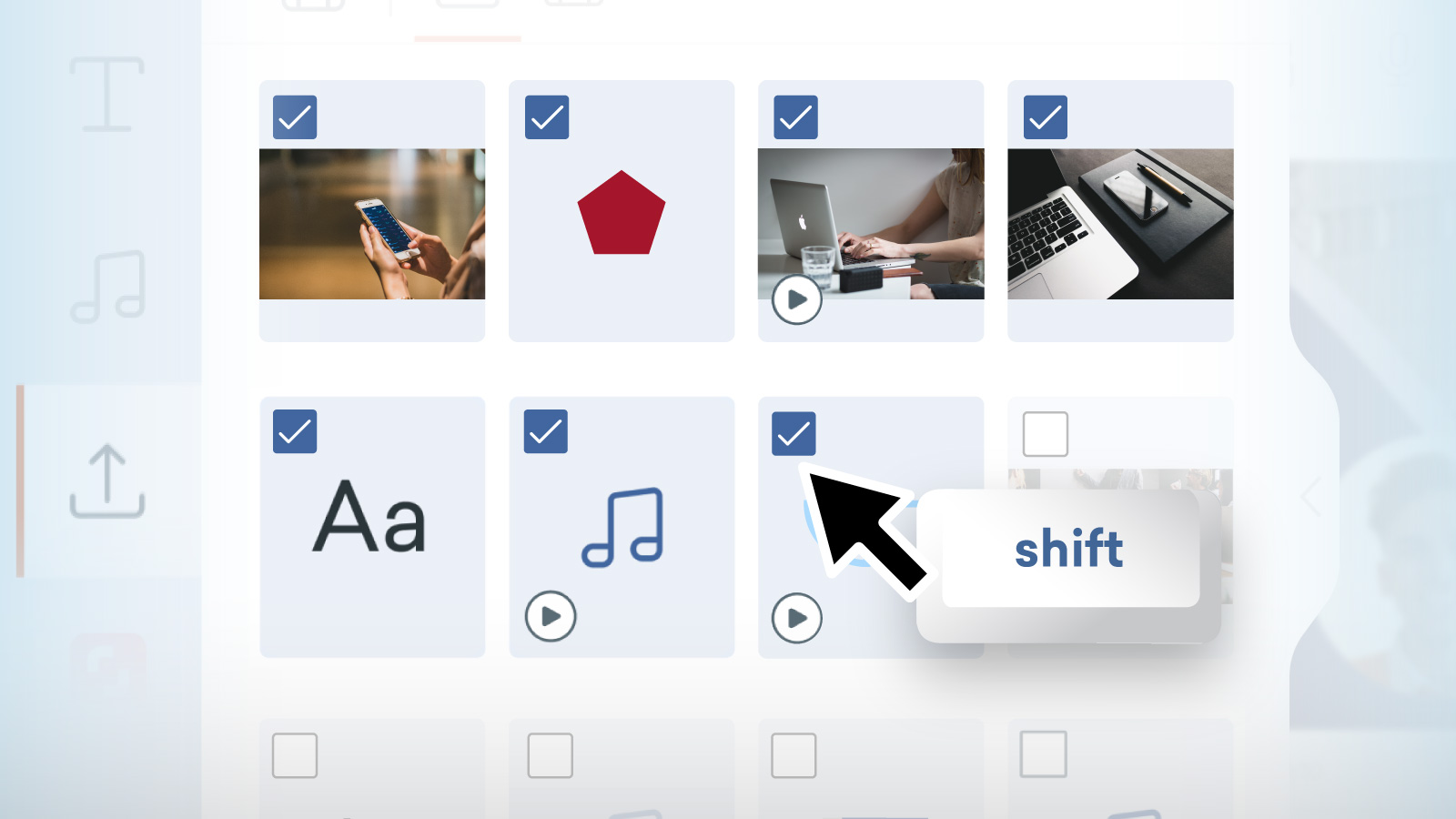
Managing large libraries of content just got a lot faster! With the Shift + Select feature, you can effortlessly choose multiple assets in a single motion in your Uploads, Characters and Audio folders, streamlining your workflow when it comes to bulk asset management.
How it works
In Vyond Studio, open the content panel on the left-hand side.
Navigate to Uploads, Characters, or Audio.
Select the first asset, hold the Shift key, then select another asset to highlight everything in between.
At the bottom of the content panel, it shows how many items are selected. You can delete, or from the 3-dot menu, you can select to add to a collection or Shared Library.
Katerina and More Voices
Female – Ana
Female – Elena
Female – Eliska
Female – Ivana
Female – Katerina
Female – Leyla
Female – Mila
Female – Selin
Female – Yoana
Male – Bo
Male – Boris
Male – Dimitris
Male – Emre
Male – Jakub
Male – Jun
Male – Luka
Male – Marko
Male – Matej
Male – Nikos
Male – Nikolay
Male – Tomas
Male – Wei
Male – Yiannis
Male – Zhan
The following High Quality voice has been updated and available on all plan types:
Mandarin, China: Female – Xiaoqi (Flash)
That’s all for this month. Let us know your thoughts in the comments below. If you have any feedback for us, please share it in #Product feedback.