Getting started with Vyond Turbo
Turbo pairs the speed of AI with the creative control you need. Enter a prompt, and Turbo builds your project brief, storyboard, script, and visuals for you.
Turbo is a separate purchase. To get access, contact sales@vyond.com.
Credits
Turbo comes with 1,500,000 credits per month, separate from your Vyond AI credits. Credits refresh on the 1st of each month at 00:00 UTC.
Accessing Turbo
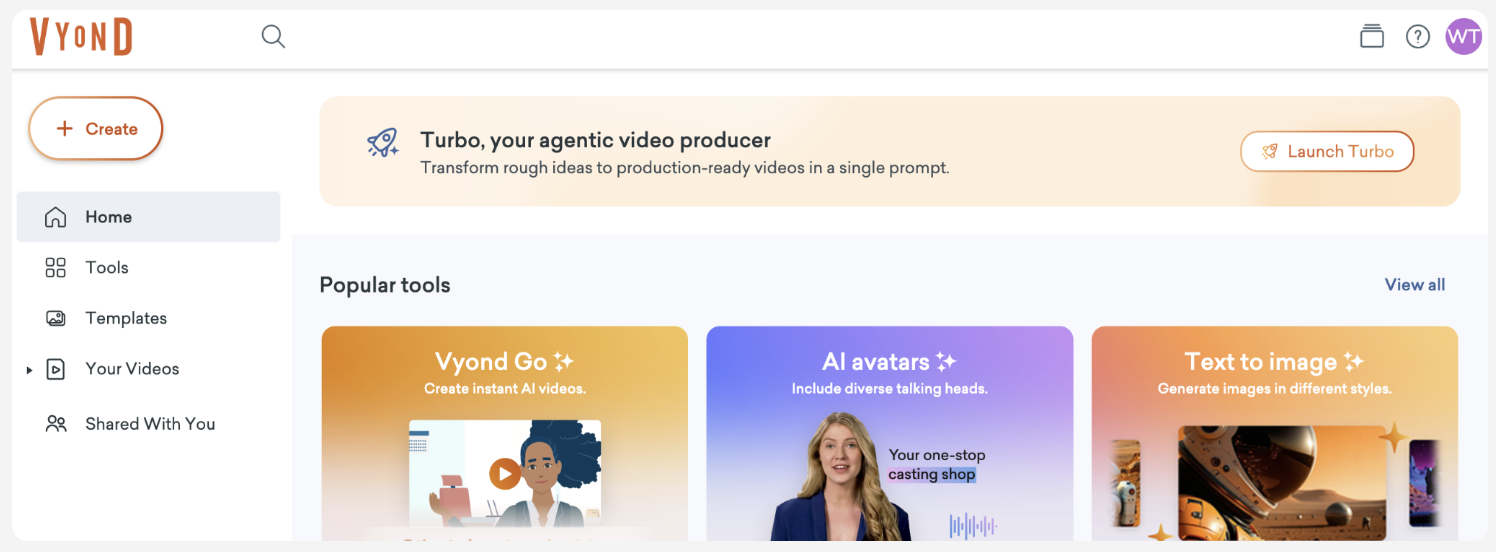
Click the Launch Turbo banner at the top of your homepage, or open it from the Create menu.
Using Turbo
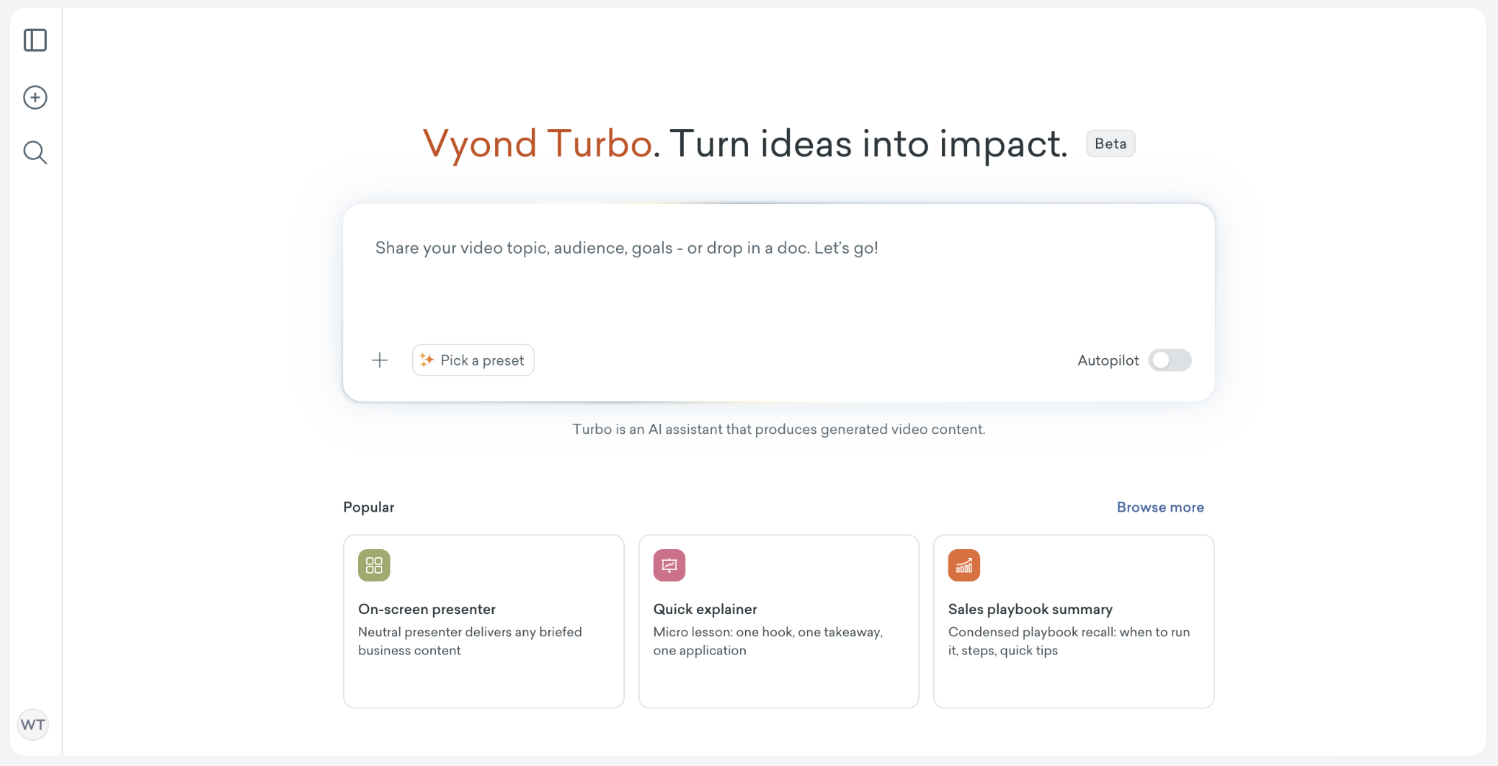
Write your prompt. Describe your topic, audience, and style. The more detail, the better the result. The Submit arrow appears once you start typing. Need ideas? Check out our prompt tips.
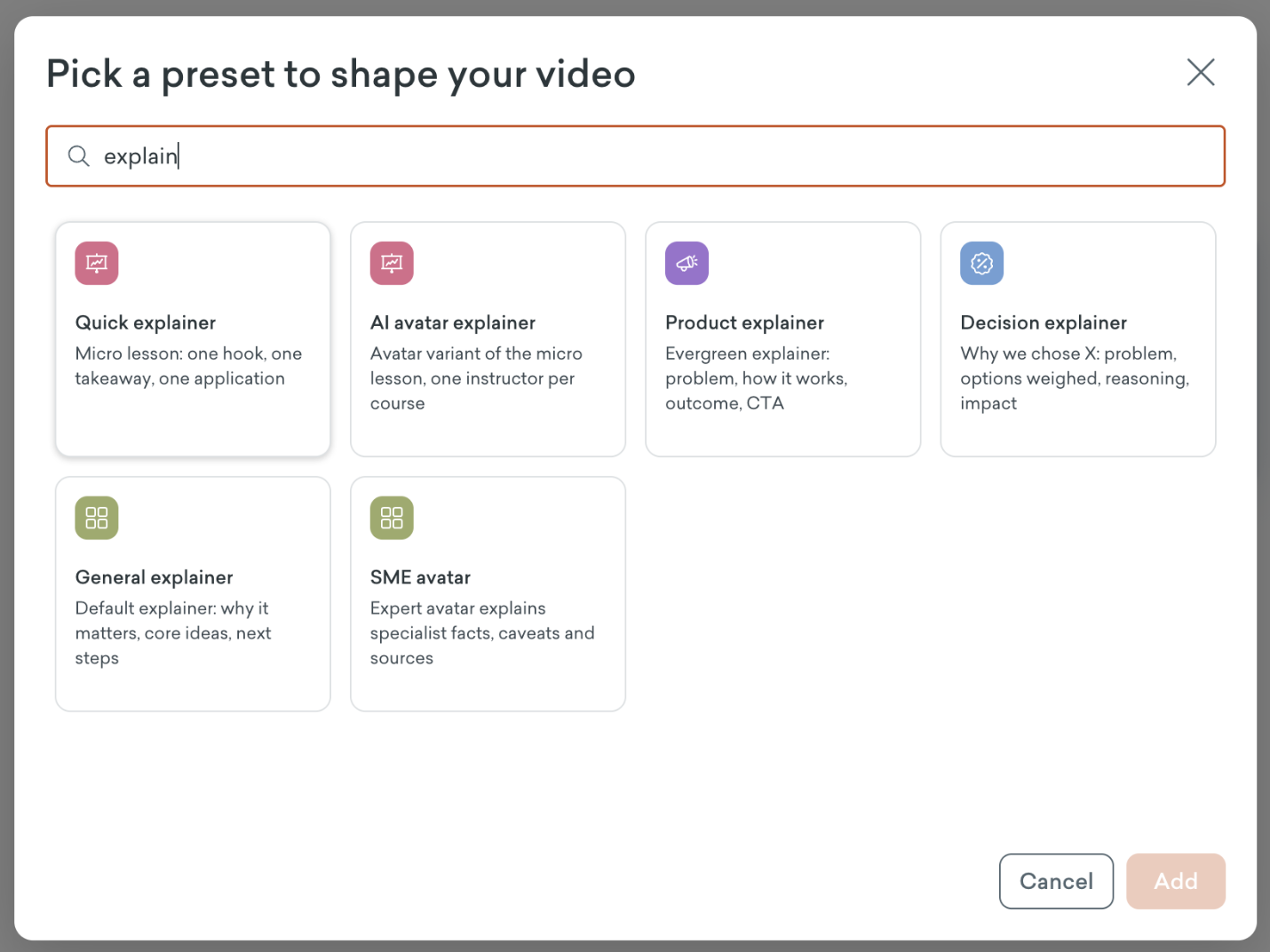
Pick a preset (optional). Presets guide Turbo and fill in details you leave out of your prompt.
Add files (optional).
Images: .png, .jpeg, .webp (up to 3 files, 5MB each)
Documents: .docx, .pdf, .pptx, .txt (up to 3 files, 100 pages or slides each)
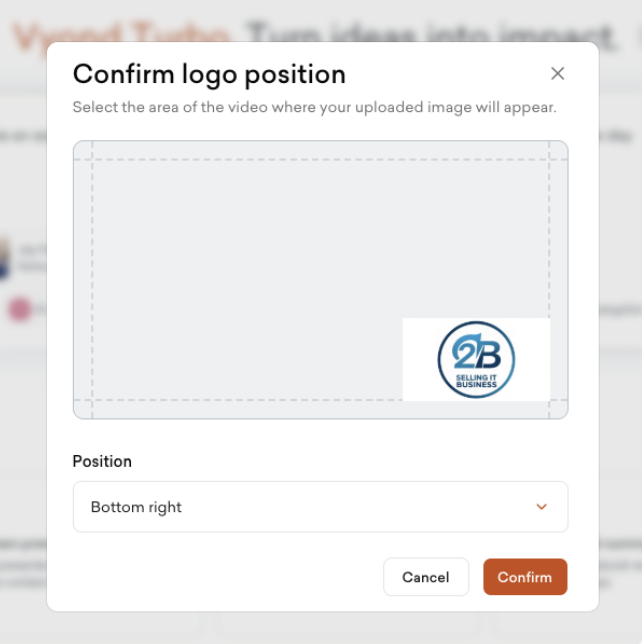
Add a logo (optional). Place it in any corner of your video.
Turn on Autopilot (optional). Skip the review steps and let Turbo handle the rest.
Review your project brief
After you submit your prompt, Turbo creates a project brief:
Objective: Turbo’s understanding of your video’s purpose, key message, audience, and what success looks like.
Scenario: The story or situation that frames your video.
Style: A reference image that sets the look and feel for all generated visuals.
Content requirements: Your narrative flow (the scene-by-scene outline), uploaded references, logo, and color palette.
Characters and audio: The characters in your video, with voice and music previews. If you use an on-screen avatar, the narration won’t lip-sync to it.
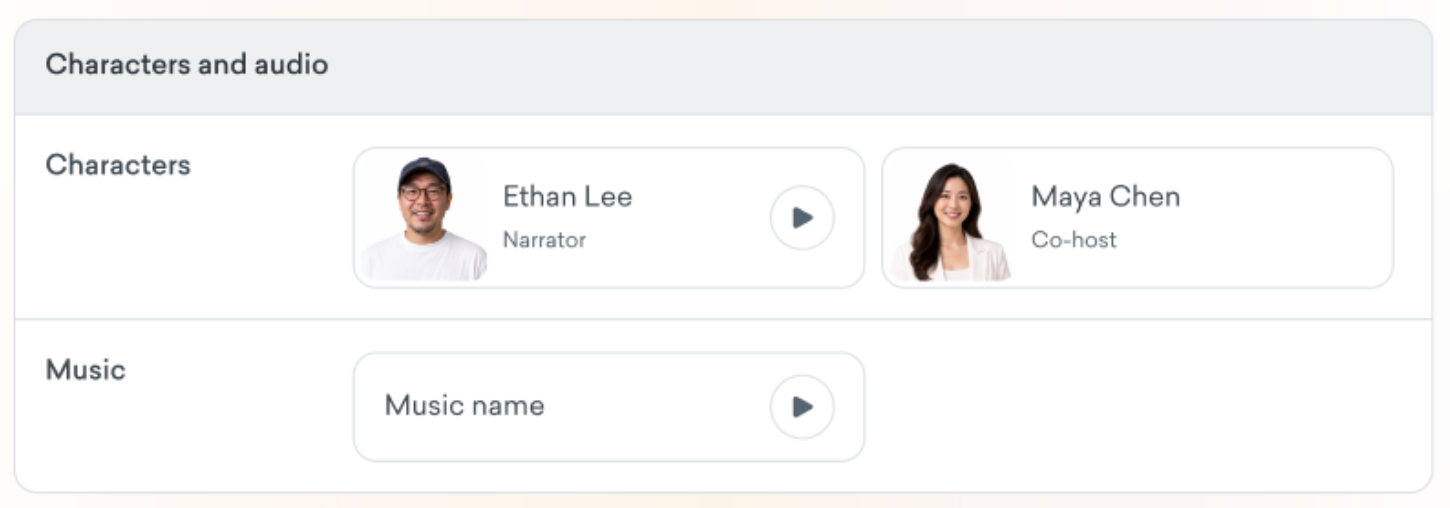
Want to change something? Tell Turbo in the chat.
Review your storyboard
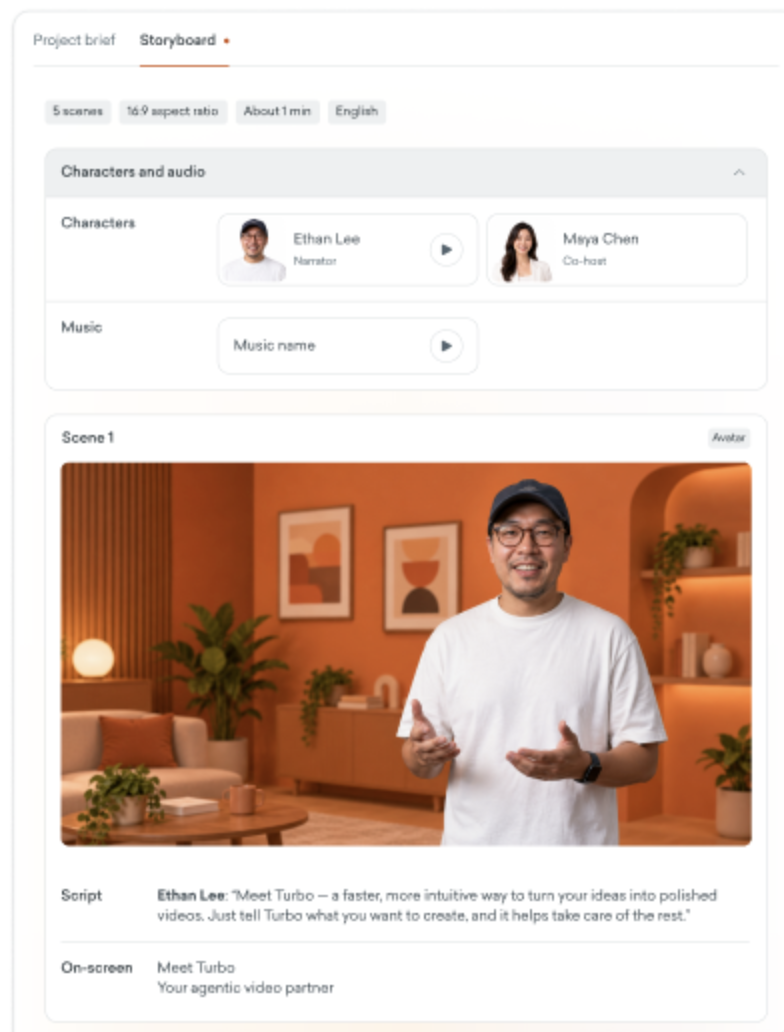
Once your brief is final, Turbo builds a storyboard so you can review each scene. For every scene, you’ll see:
Script: What the narrator says
On-screen text: Text that appears in the video
Visuals: Whether the scene uses a video clip, an on-screen presenter (avatar), graphics (animated text and text boxes), or an image
Need an adjustment? Ask Turbo, and it will regenerate that scene.
Generate your video
When your storyboard is ready, tell Turbo to generate your video. Turbo will show the credit cost first. Confirm, and Turbo creates your video.